How to Troubleshoot Kubernetes Cluster Access Issues (Step-by-Step Guide)

👋 Welcome to my Hashnode profile! I'm a passionate technologist with expertise in AWS, DevOps, Kubernetes, Terraform, Datree, and various cloud technologies. Here's a glimpse into what I bring to the table: 🌟 Cloud Aficionado: I thrive in the world of cloud technologies, particularly AWS. From architecting scalable infrastructure to optimizing cost efficiency, I love diving deep into the AWS ecosystem and crafting robust solutions. 🚀 DevOps Champion: As a DevOps enthusiast, I embrace the culture of collaboration and continuous improvement. I specialize in streamlining development workflows, implementing CI/CD pipelines, and automating infrastructure deployment using modern tools like Kubernetes. ⛵ Kubernetes Navigator: Navigating the seas of containerization is my forte. With a solid grasp on Kubernetes, I orchestrate containerized applications, manage deployments, and ensure seamless scalability while maximizing resource utilization. 🏗️ Terraform Magician: Building infrastructure as code is where I excel. With Terraform, I conjure up infrastructure blueprints, define infrastructure-as-code, and provision resources across multiple cloud platforms, ensuring consistent and reproducible deployments. 🌳 Datree Guardian: In my quest for secure and compliant code, I leverage Datree to enforce best practices and prevent misconfigurations. I'm passionate about maintaining code quality, security, and reliability in every project I undertake. 🌐 Cloud Explorer: The ever-evolving cloud landscape fascinates me, and I'm constantly exploring new technologies and trends. From serverless architectures to big data analytics, I'm eager to stay ahead of the curve and help you harness the full potential of the cloud. Whether you need assistance in designing scalable architectures, optimizing your infrastructure, or enhancing your DevOps practices, I'm here to collaborate and share my knowledge. Let's embark on a journey together, where we leverage cutting-edge technologies to build robust and efficient solutions in the cloud! 🚀💻
Introduction
Kubernetes simplifies container orchestration but requires precise configuration to work seamlessly. One common hurdle users face is accessing their Kubernetes cluster using kubectl. Misconfigurations often result in frustrating errors like "connection refused" or "permission denied."
In this guide, you’ll learn:
Common reasons for cluster access issues.
Step-by-step methods to fix them.
Essential commands and troubleshooting tools.
By the end, you’ll confidently diagnose and resolve cluster connectivity problems.
Step 1: Check Cluster Nodes
Before troubleshooting, try to access your cluster using the following command:
Copy
kubectl get nodes
What You Might See
- Error: Connection Refused
This occurs becausekubectlis not correctly configured to connect to the cluster’s API server.

What’s Happening?
By default, kubectl tries to connect to the Kubernetes API server on localhost:8080. However, in many cases (e.g., when using a bastion host), there’s no local API server running.
Solution
You need to copy the cluster’s configuration file (kubeconfig) from the control-plane node to the bastion host and use it with kubectl.
Step 2: Copy the kubeconfig File
The kubeconfig file tells kubectl how to connect to the Kubernetes cluster. Follow these steps to set it up:
Create the necessary directory:
mkdir -p ~/.kubeCopy the kubeconfig file from the control-plane node:
scp -o "ForwardAgent yes" control-plane:.kube/config ~/.kube/config
Verify the file exists:
ls ~/.kube/config
What’s in a kubeconfig File?
The kubeconfig file contains:
Cluster Information: API server address and certificates.
User Information: Credentials for authentication.
Contexts: Mapping between clusters, users, and namespaces.
Step 3: Understand kubeconfig Keys
Inspect the contents of the kubeconfig file with this command:
cat ~/.kube/config
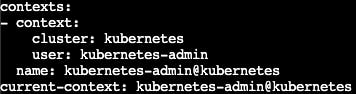
Key Sections of kubeconfig
clusters: Defines Kubernetes clusters.
users: Contains credentials for authentication.
contexts: Links clusters, users, and namespaces.
current-context: Specifies the active context for
kubectl.
Image Suggestion: A labeled screenshot of a sample kubeconfig file highlighting clusters, contexts, and current-context.
Image Of Kubeconfig file
Step 4: Verify and Change the Current Context
If the current context isn’t correctly set, kubectl won’t know which cluster to connect to.
List all contexts:
Copy
kubectl config get-contextsExample Output:
  CURRENT   NAME             CLUSTER          AUTHINFO    NAMESPACE
            admin@kubernetes kubernetes       admin
If the
CURRENTcolumn is empty, no context is active.Set the correct context:
kubectl config use-context admin@kubernetesRecheck the nodes:
kubectl get nodes
Step 5: Diagnose Access Issues
Even after setting the correct context, you might encounter errors like:
Connection Refused: Network or firewall issues.
Permission Denied: User lacks the necessary permissions.
Diagnosing Connection Issues
Check if kubectl can reach the API server:
Copy
kubectl cluster-info
If you see a timeout or unreachable error:
Ensure the bastion host can access the control-plane node (check firewalls).
Verify the API server address in the
kubeconfigfile.
Diagnosing Permission Issues
Check if the current user can list nodes:
kubectl auth can-i list nodes -A
YES: The user has the required permissions.
NO: Review Role-Based Access Control (RBAC) settings.
Step 6: Verify RBAC Settings
RBAC defines what actions users can perform in the cluster. Follow these steps to inspect roles:
List all cluster roles:
kubectl get clusterrolesDescribe the cluster-admin role:
kubectl describe clusterrole cluster-adminCheck the cluster role binding:
kubectl describe clusterrolebinding admin-cluster-bindingExplanation: This command shows which users/groups are bound to the
cluster-adminrole.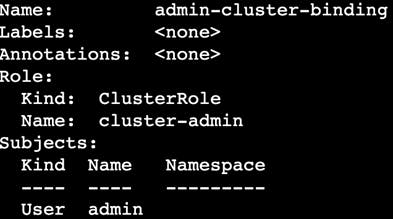
Step 7: Verify User Certificates
Kubernetes uses client certificates for authentication. To verify the admin certificate in the kubeconfig file:
Extract the certificate:
  grep "client-cert" ~/.kube/config | \
  sed 's/\(.*client-certificate-data: \)\(.*\)/\2/' | \
  base64 --decode > cert.pem
Inspect the certificate with OpenSSL:
openssl x509 -in cert.pem -text -nooutVerify the common name (CN): The CN should match the user (
admin) specified in thekubeconfig.
Conclusion
By following this guide, you’ve learned:
How to configure and troubleshoot
kubectlaccess to a Kubernetes cluster.The importance of
kubeconfigand RBAC in securing and managing cluster access.Tools and commands to diagnose common connectivity and permission issues.
Remember, Kubernetes requires precise configurations, and even small mistakes can cause access problems. Use this guide as a reference whenever you encounter such issues.
Bonus Tip: Always double-check your network setup and firewall rules when troubleshooting connectivity problems.


